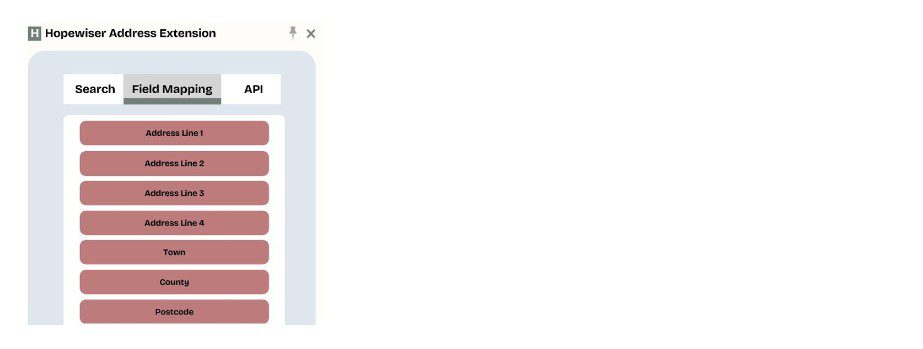
Field Mapping Tab
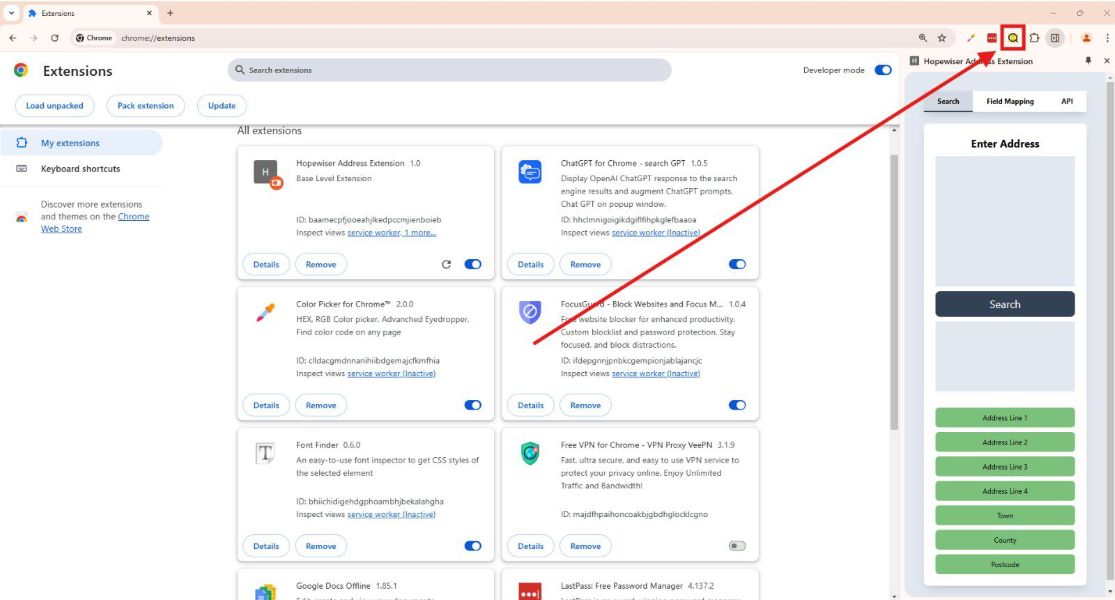
In this tab, you can map the portions of output addresses (e.g. postcode) to the fields on the currently open webpage.
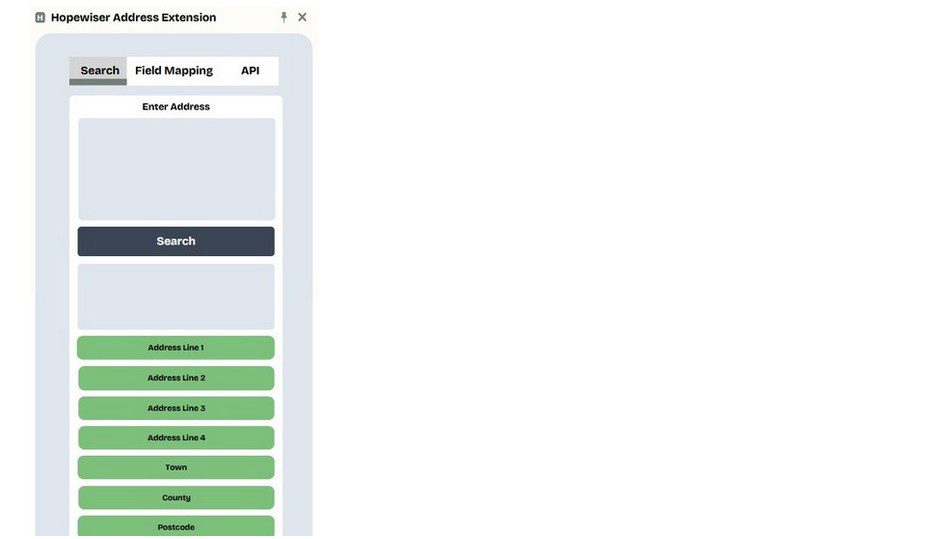
Search Tab
In this tab, you can search for addresses using the free format lookup. You can also toggle the portions of a found address to be outputted.
Usage
Mapping Address Output Fields
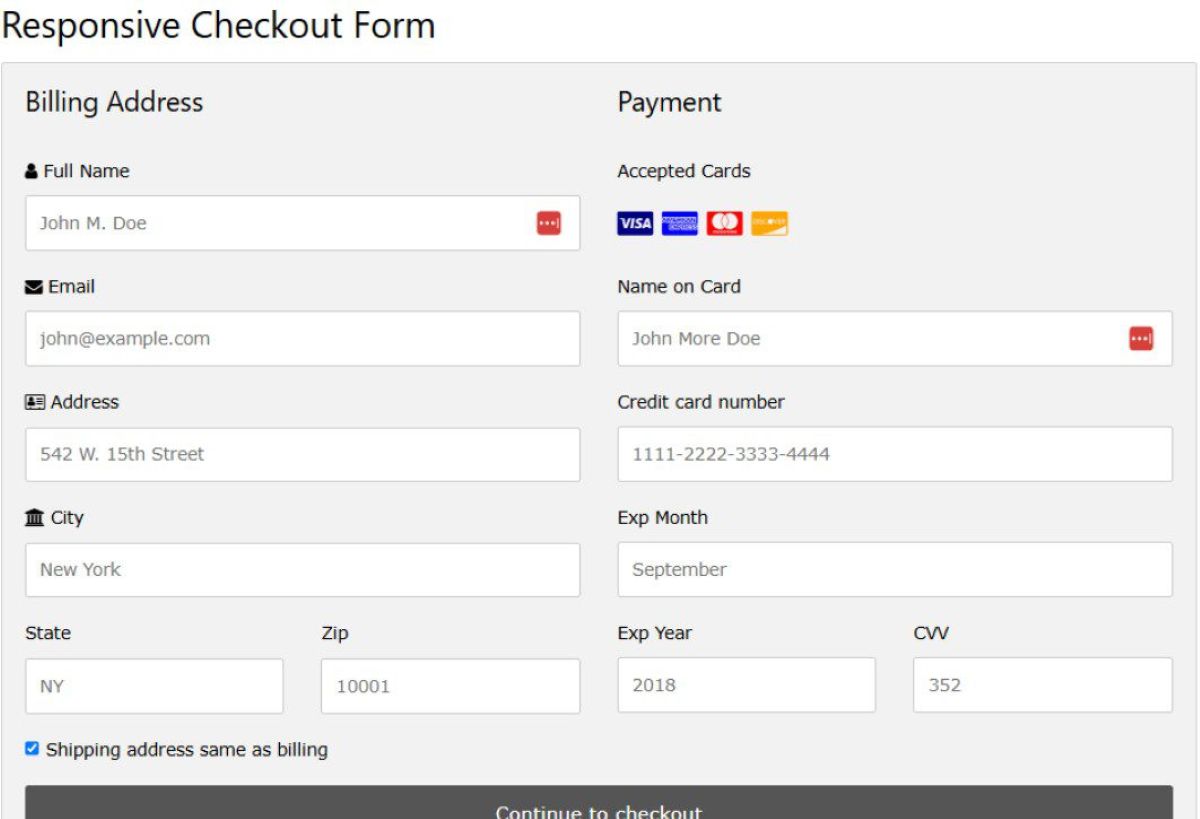
1) Open a website form that you want to enter an address into.
2) Open the side panel.
3) Go to the Field Mapping tab.
4) On the website form, click on the field you want to output part of an address to.
5) In the Field Mapping tab, hover over a part of the address you want to output, the field on the website should now be highlighted in blue.
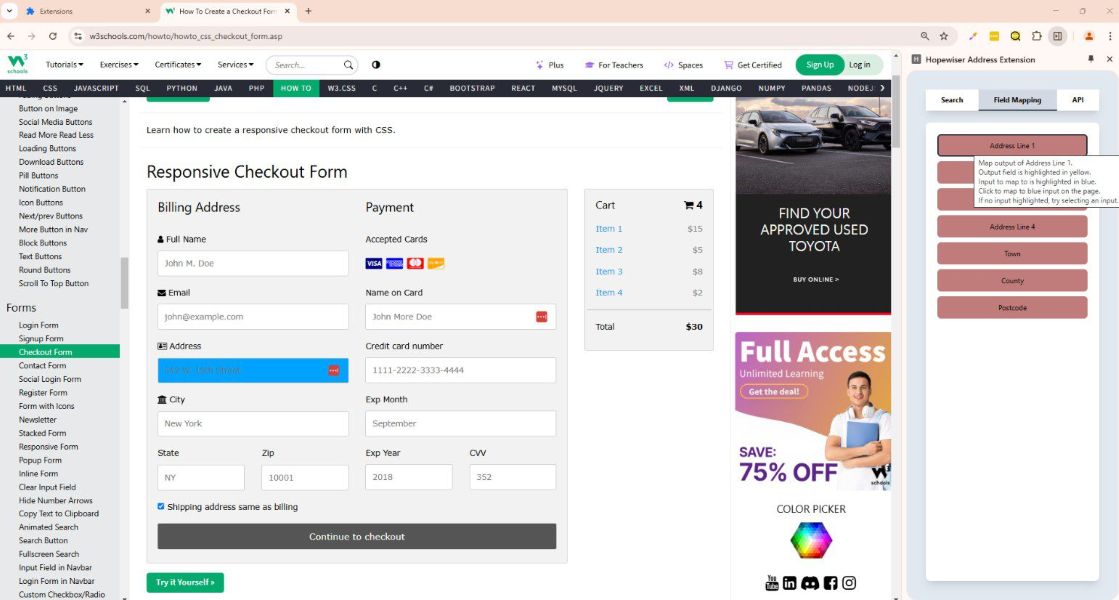
6) Click on the button you have hovered over to map the address part to the field on the webpage, the button should now turn from red to green.
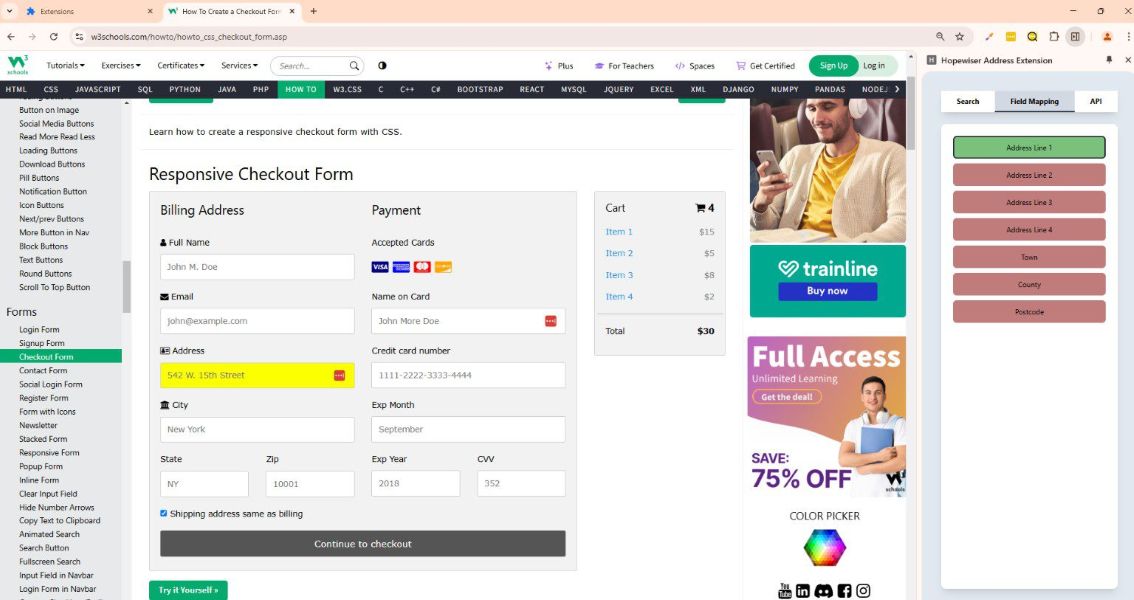
7) Repeat the above steps for all the fields you want to map. Multiple parts of an address can be mapped to the same field.
8) If you see both yellow and blue highlights when hovering over a mapping button, the yellow highlighted field is where this part of the address is currently mapped to, and the blue highlighted field is where it will be re-mapped to if you click on the button.
Autocomplete Search
1) Open the side panel.
2) Go to the Search tab.
3) Check which fields on the webpage parts of an address will be output to by hovering over the enable/disable buttons.
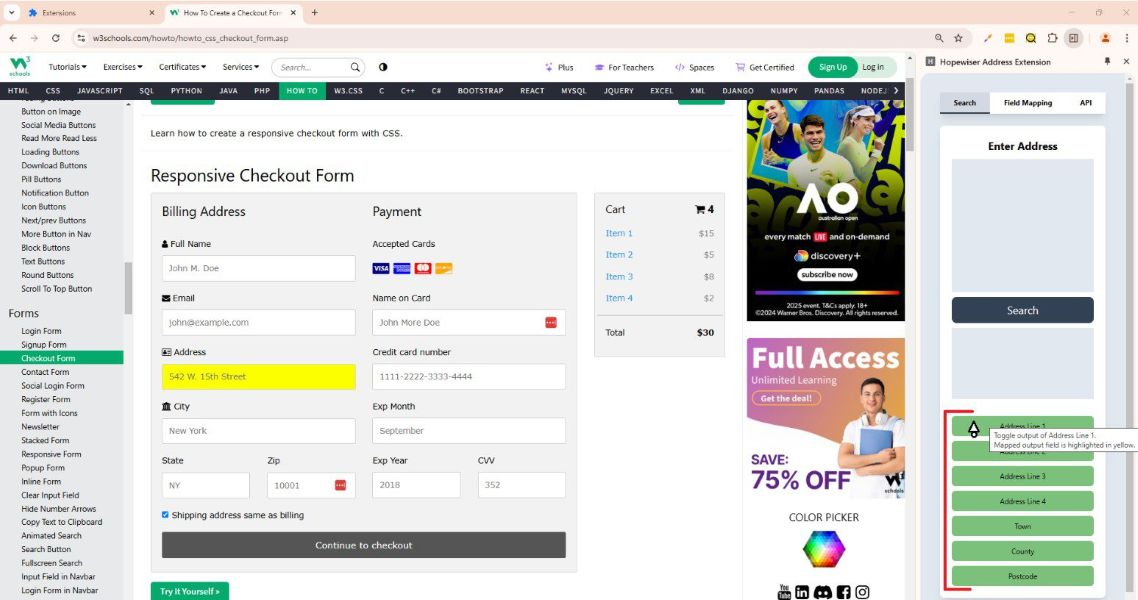
4) Click the enable/disable buttons to toggle the output of parts of the final address.
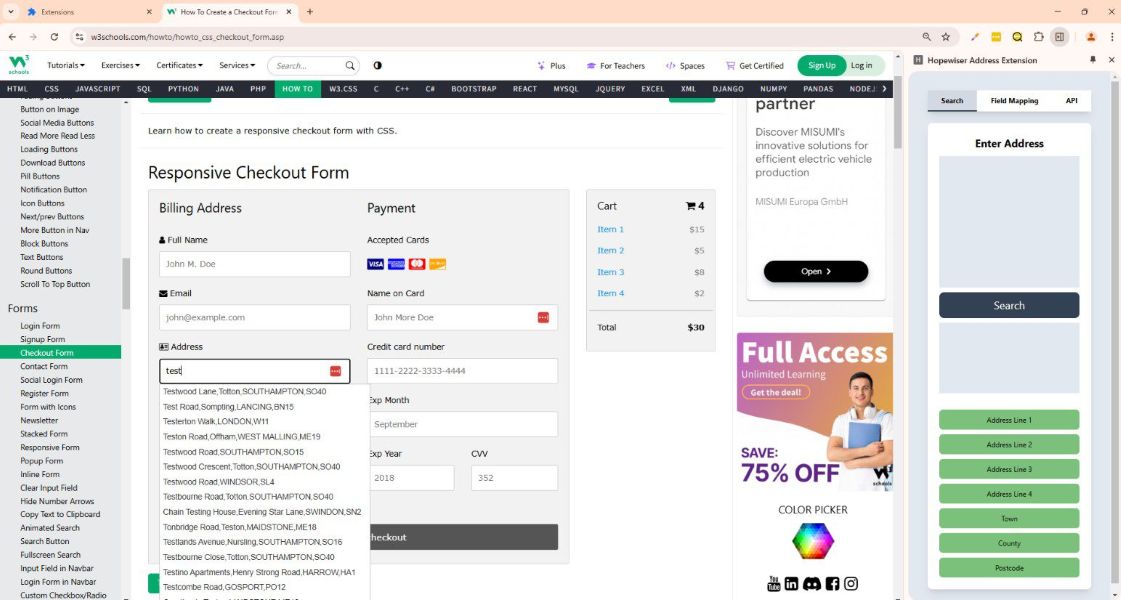
5) Start typing an address into any of the fields on the webpage that you have mapped part of an address to.
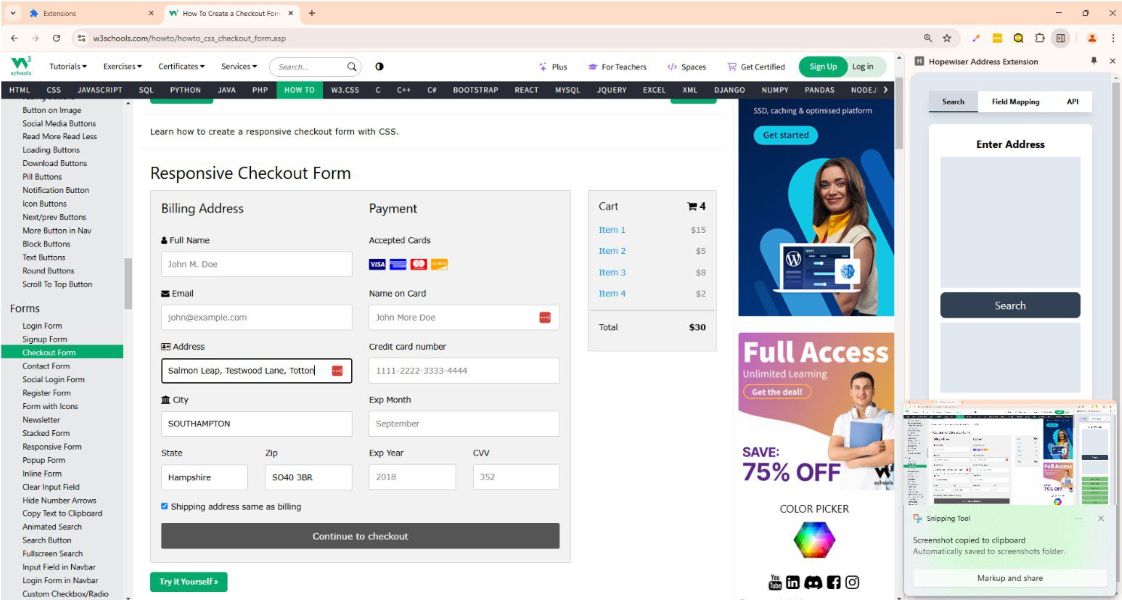
6) Suggestions will appear next to the field you are typing in. Click on a suggestion to output the full address to the mapped fields.
Free Format Lookup
1) Open the side panel.
2) Go to the Search tab.
3) Check which fields on the webpage parts of an address will be output to by hovering over the enable/disable buttons.
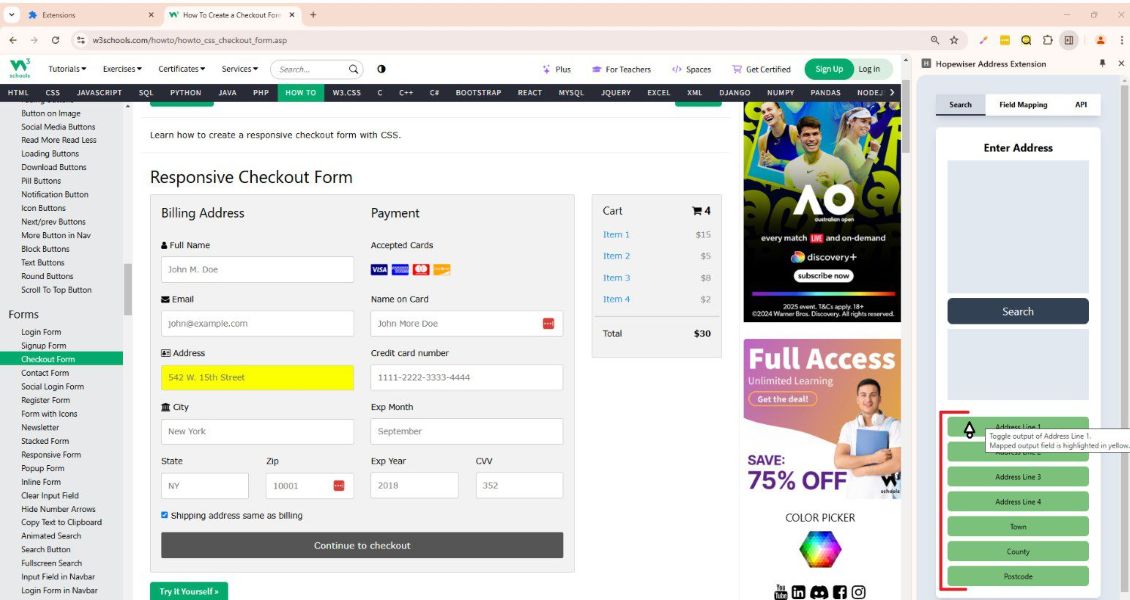
4) Click the enable/disable buttons to toggle the output of parts of the final address.
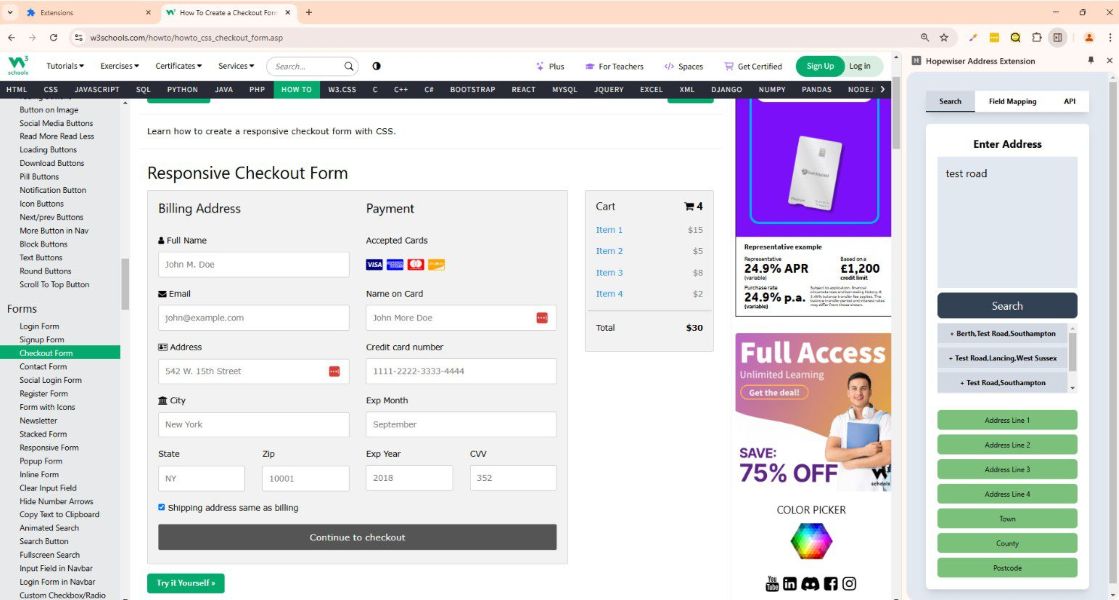
5) Start typing into the “Enter address” box.
6) Click on the search button.
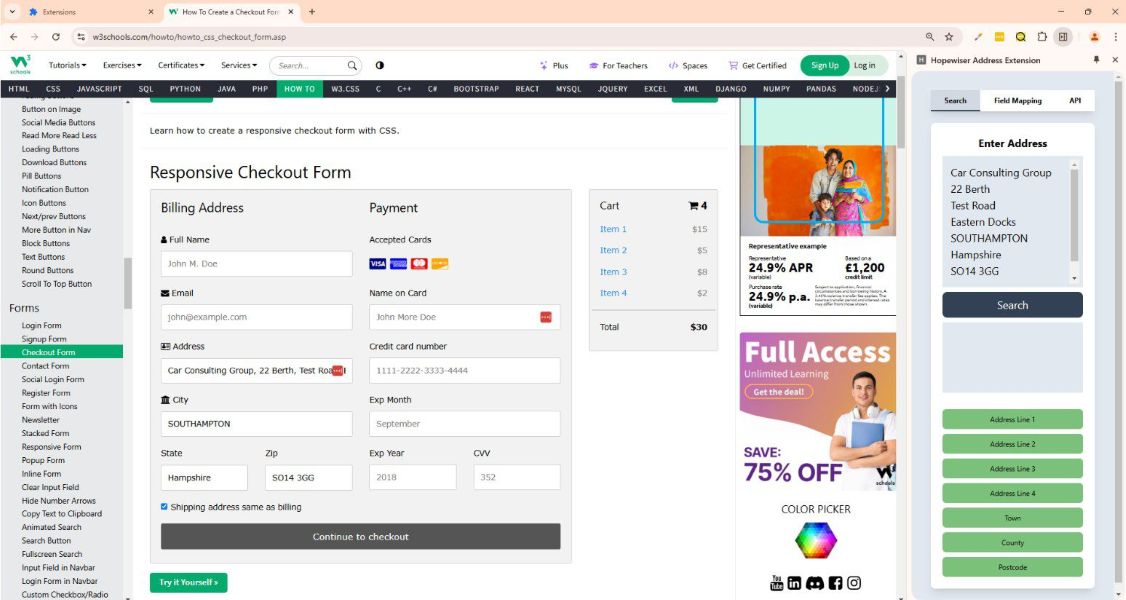
7) Results will appear in the box below, which you can click on to expand or insert into the website form.
Uninstall
1) Open Chrome and navigate to chrome://extensions/.
2) Find the Hopewiser extension.
3) Click on “Remove”.